Overview
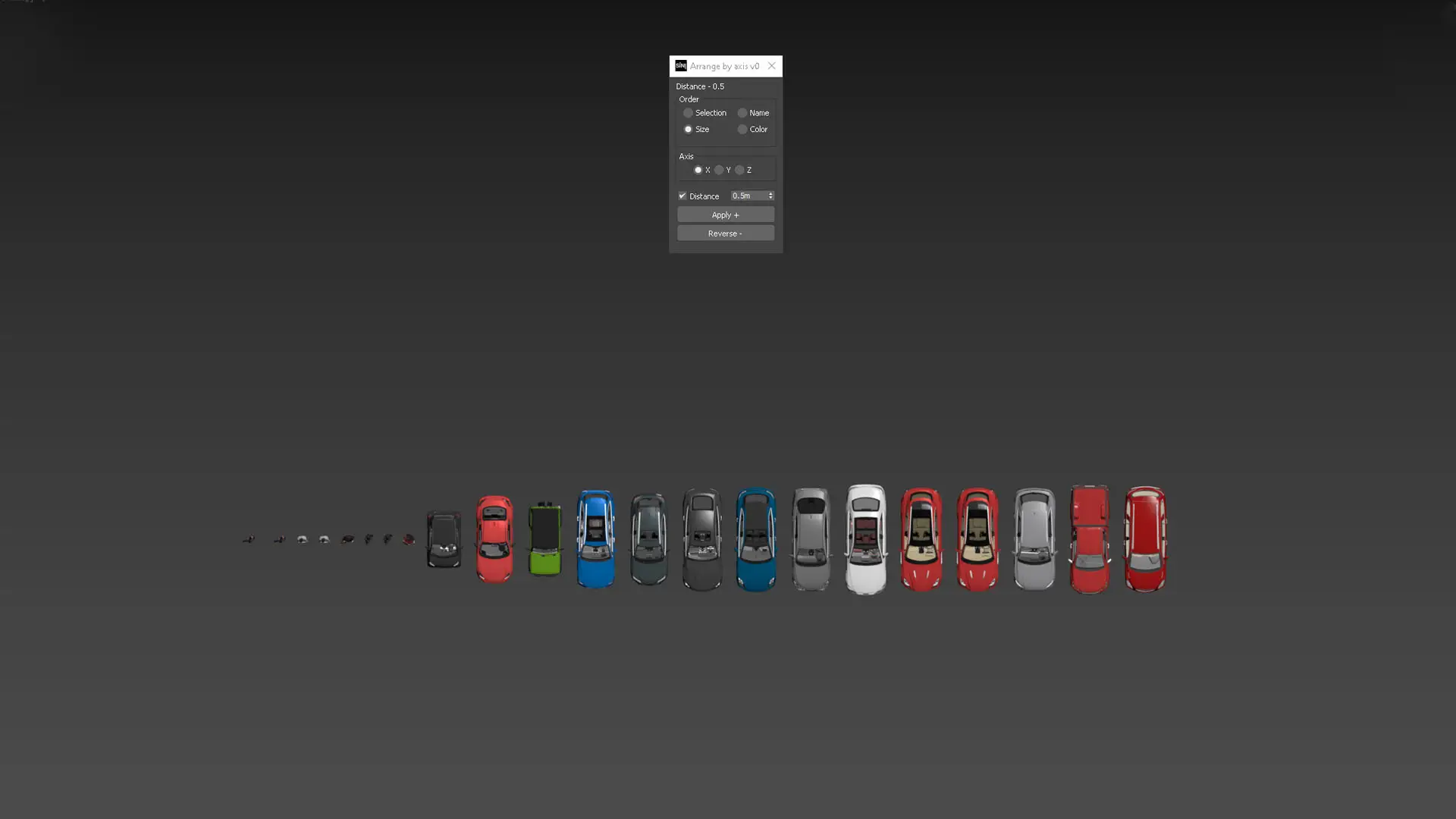
Arrange by Axis automatically organises selected objects into a linear arrangement along the X, Y or Z axis.
Objects can be sorted by Selection, Name, Size or Colour before being positioned. An optional Distance setting allows additional spacing to be applied between objects.
This utility is useful for organising asset libraries, comparing model variations and creating clean presentation layouts.
Technical Requirements
| Requirement |
Details |
| Software |
3ds Max |
| Platform |
Windows |
| Licence |
All Access, IgNite or Forensic |
| Account Required |
Yes |
| Activation |
SiNi Desipher Licence Manager |
| Industry |
Architectural Visualisation |
| Developer |
SiNi Software |
Licence Requirements
This tool requires an active SiNi user account and a valid licence.
Supported Licences
- All Access Subscription
- IgNite Subscription
- Forensic (Free) Licence
The script will not function unless you are logged into the SiNi Desipher Licence Manager within 3ds Max.
If a valid licence cannot be found, functionality will be disabled until a licence is activated.
Activating Your Licence
- Create a SiNi account at SiNiSoftware.com.
- Download the latest SiNi installer.
- Install SiNi into your version of 3ds Max.
- This installs the SiNi Desipher Licence Manager.
- Launch 3ds Max.
- Open the Desipher Licence Manager.
- Sign in using your SiNi account credentials.
- Once your licence has been validated, the script will become available for use.
Installation
ZIP Package Contents
- MacroScript Version
- Documentation
Installing the MacroScript Version

- Extract the ZIP file.
- There are three options to install MacroScript .MZP files.
– Drag and Drop the MacroScript .MZP file into a 3ds Max viewport.
– Run the Script from the Command Panel; Utilities/MAXScript/Run Script.
- Open Customise → Customise User Interface.
- Select the Sinilab_Scripts category.
- Drag the tool onto a toolbar, quad menu or menu.
MacroScript Controls
Single-Click the toolbar icon to apply the default setting.
Shift-Click the toolbar icon to open the UI and make adjustments. The settings will be saved as the default.
Rollout Reference
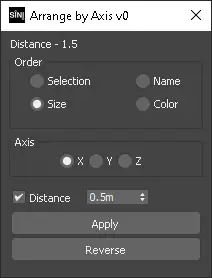
Organises selected objects along a chosen axis.
Order
Selects how objects are sorted before arranging.
- Selection
- Name
- Size
- Colour
Axis
Selects the arrangement direction.
Distance
Adds spacing between arranged objects.
Apply
Arranges objects using the current settings.
Reverse
Applies spacing in the opposite direction.
Typical Workflow
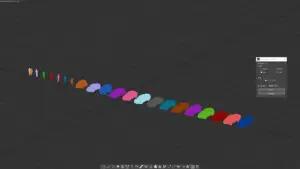
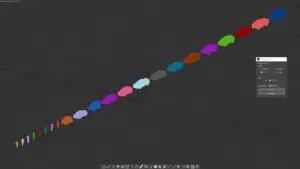
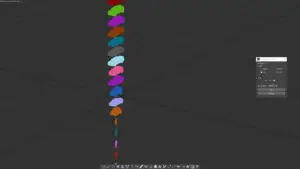
- Select the objects.
- Choose an Order method.
- Select an Axis.
- Optionally enable Distance and enter a value.
- Click Apply.
The objects are arranged according to the selected settings.
Troubleshooting
Nothing happens when I click Apply
Ensure at least one object is selected.
The tool is disabled
Ensure you are logged into the SiNi Desipher Licence Manager and have a valid licence.











amitgedia –
Such a helpful tool when you have geometry scattered here and there or when you merge a file and the objects dont come at the desired place this script is useful to arrange them in a straight line according to your axis you selected or want it to be. Plus there are other options to arrange them as well. Love this script as its a time saver.